
Image to Video with a First Frame: Tips
How first-frame image to video works with Wan 3.0: preparing the image, matching the frame shape, writing a motion prompt, reference images, seeds and the rights rules.
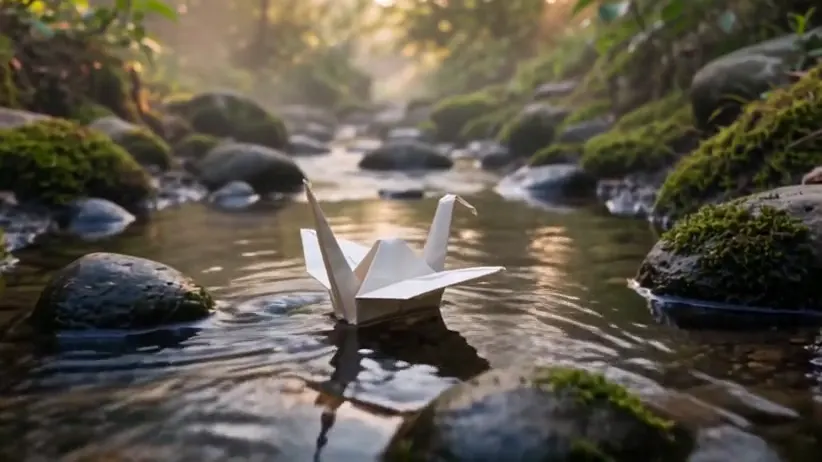
In first-frame image to video, the image you upload becomes the opening frame of the clip and your prompt describes only what happens next. Get three things right and most results improve: a clean image cropped to the frame shape you will render (16:9, 9:16, 1:1, 4:3 or 3:4), a prompt about motion rather than appearance, and small, plausible movement. The rest of this guide explains each step and the rules for what you may upload.
How first-frame image to video works
On Wan-3.org you add one image as the first frame. Wan 3.0 treats it as frame one and generates the following seconds from it, together with a soundtrack unless you switch sound off. Because the start is fixed, the subject, colours, lighting and composition of your picture carry into the clip. Everything after that first frame, including any area the camera reveals, is invented by the model.
If you don't want a fixed opening shot, add up to four reference images instead. They guide the subject, palette and style, but the clip can start anywhere. Pick one mode per clip: a first frame when the opening must match, references when the look matters more than the exact start.
Set the frame shape to adaptive and the clip follows the shape of your first frame, so nothing gets padded or cropped.
Prepare the image
- Crop to the output shape first. If you will render 9:16, crop the image to 9:16 yourself. Otherwise the model has to pad or crop it, and that is where unwanted changes creep in.
- One clear subject, sharp and well lit. Blur, heavy noise and very dark areas tend to turn into flicker once things move.
- Leave space around the subject. A subject touching the edge gives the motion nowhere to go except into invented territory.
- Remove overlays. Captions, stickers, watermarks and UI elements warp as the frame moves. Add text in an editor after rendering.
- Choose a moment that can continue. A frame caught mid-action (a wave about to break, a dancer mid-step) gives the model an obvious next move.
Write a motion prompt
The model can already see the picture, so describing it again adds little. Spend your words on what changes:
- Subject motion: "steam drifts up from the cup", "she turns her head toward the window", "the dog shakes water off its coat".
- Camera: one move per clip, such as "slow push-in", "gentle orbit to the left" or "locked-off static shot".
- Environment: "a cloud passes and the light dims", "rain begins on the glass".
- Sound: Wan 3.0 renders audio unless you switch it off, so name it: "quiet café murmur and a spoon on porcelain", "wind through dry grass".
A useful pattern is subject action, then camera, then sound, in two or three sentences. If your idea is only a few words, prompt extend can write it out; for image to video, cut the rewrite back to motion, because the picture already shows the rest.
Keep motion modest
Small movements keep the subject recognisable: hair in the wind, a slow turn, light sliding across a surface, a gentle dolly. Large actions, like a person standing up and walking out of shot, ask the model to invent much of what wasn't in your photo, and identity and proportions drift. If you need a big action, try a short 480p draft first and look closely at the last second before paying for a long one. Note the seed of a draft that works: the same image, prompt and seed at 1080p keeps the motion close.
Product shots
First-frame image to video is especially handy for product clips:
- Use a clean packshot on a plain background with a readable label.
- Ask for a slow orbit, a turntable spin or a push-in rather than fast motion.
- Change the surroundings, not the product: "condensation beads on the bottle", "petals drift past", "sunlight moves across the counter".
- Render 9:16 for vertical feeds, 1:1 for square posts and 16:9 for a site banner.
- Run four seeds of the same packshot at 480p and keep the cleanest spin.
Your own products and brand are fine. Someone else's logo, packaging or characters are not, unless the owner has agreed.
People: consent comes first
Animate your own photo, or a photo of a person who has explicitly said yes; you confirm that consent when you upload it. You may not upload photos of public figures (celebrities, politicians, influencers, or their lookalikes), strangers, or anyone under 18. Wan-3.org never changes who appears in a video or imitates anyone's voice, and a first frame may not be used to pass someone off as someone else. Every prompt and image is screened before rendering, and the full rules are in the Acceptable Use Policy.
Troubleshooting
- The subject changes shape or face: reduce the motion and make the camera move slower, or switch to a tighter crop.
- The background warps: describe the background as still ("the room stays still") and keep the camera static.
- Nothing much happens: name a concrete action with a verb, not a mood.
- Odd sound: tie the sound to something visible in the frame.
FAQ
How many images can I add? One first frame, or up to four reference images, per video.
Does adding an image change the price? Slightly. Each image adds 2 credits for its automated safety check; the render itself is priced by resolution and length, the same with or without images.
Who can see my uploaded image? Only you. Uploads are never shown in a gallery or on a public page, and they are deleted 30 days after the job.
Put a guide to work
Open the composer, describe the shot, fix a seed if you like and check the credits on the button before you render.